
A form arrives by email and has to be returned filled in and signed. At your desk, that means print, fill in, sign, scan. On the go, it usually means: later.
For cases like this, there are subscription apps that often store the documents on the provider’s servers. The PDF app does it right on your phone, and the document stays on the device.
Like any other app, it can be added to your home screen. It needs no login, also works without a connection and stores nothing on a server.
- Open
- Fill in
- Sign
- Share
The PDF opens on the phone, without a login. lease.pdf
You fill in the fields and correct existing text right in the document. 7 fields
You sign with your finger. signed
You reduce the file size and share it. Until then, the document doesn’t leave the device. 0.8 MB
Works without AI.
No subscription and no login; the document stays on the device.
Office & admin
In use
Screens from the real software
The screens show the German interface. Names and content in them are examples. Click an image to enlarge it.
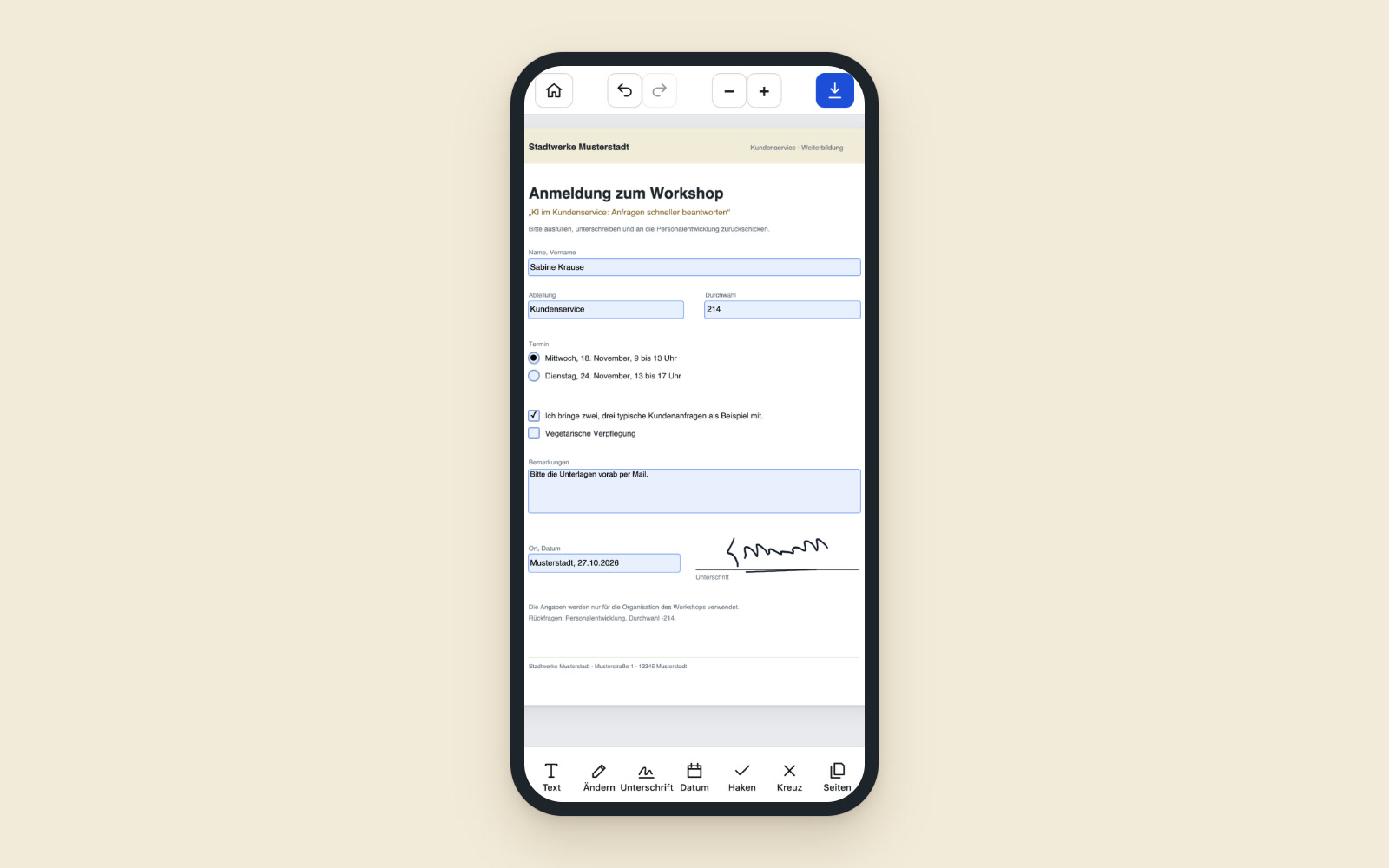
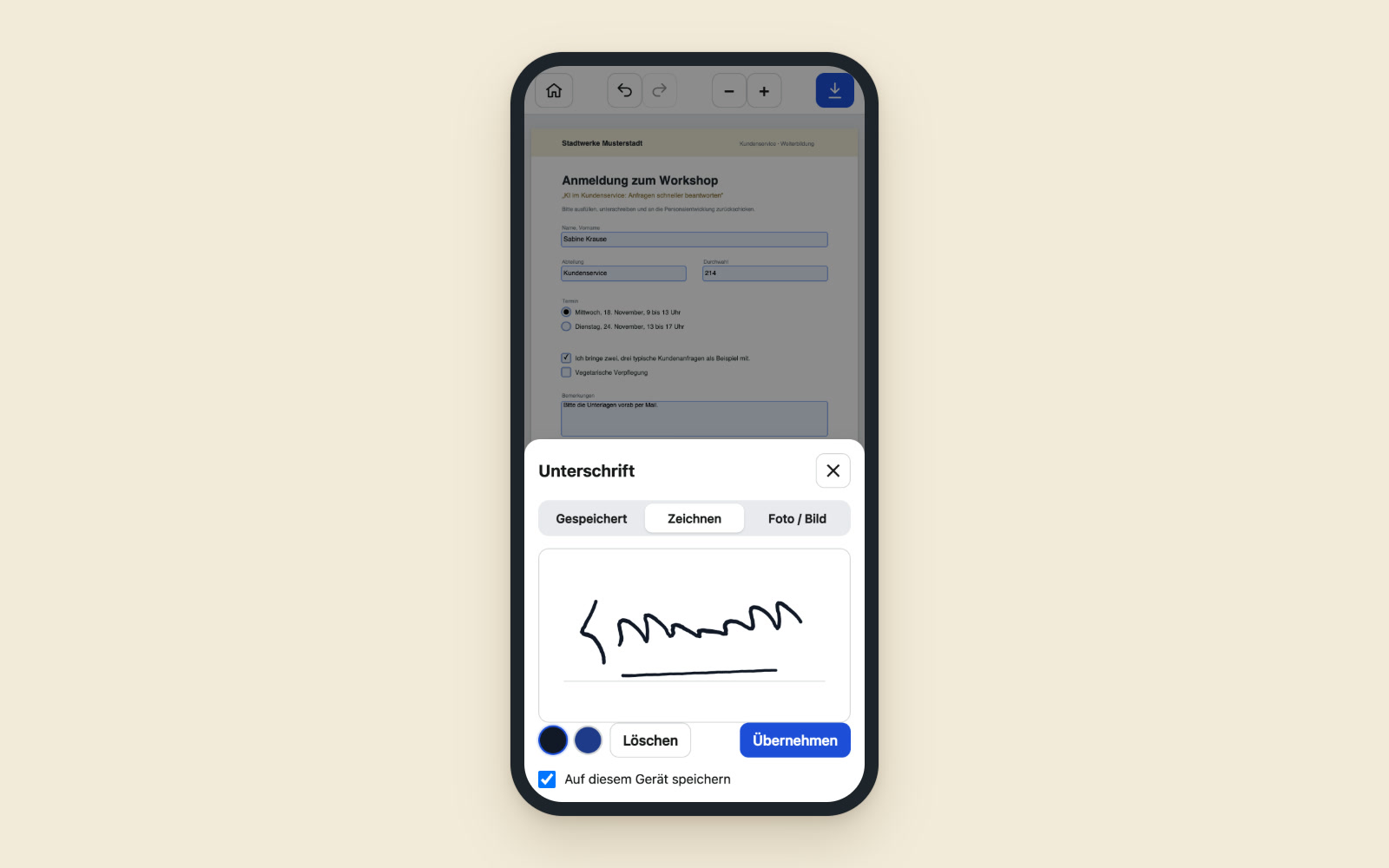
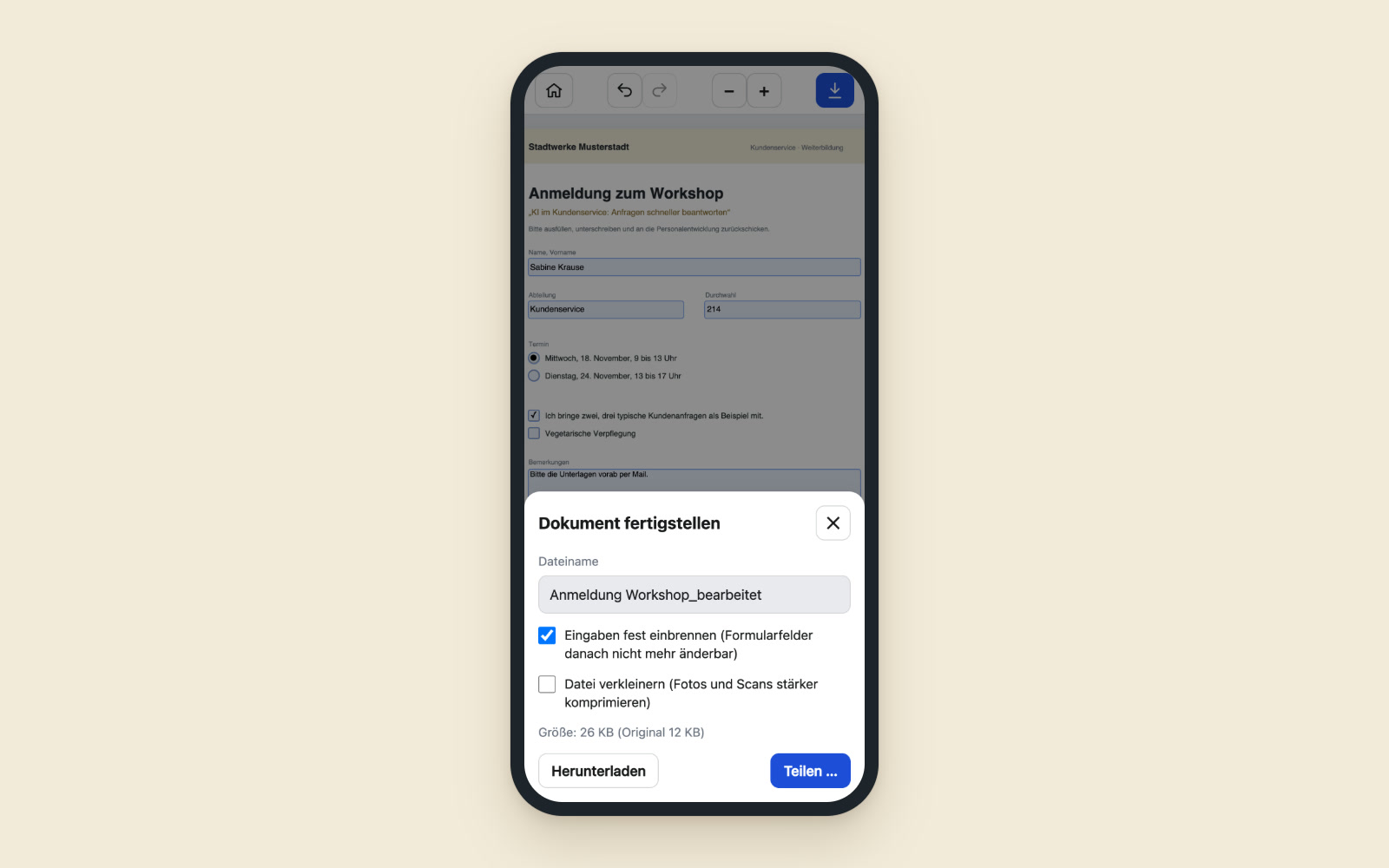
A lease, signed in the parking lot
An example from a freelancer’s day: on the way to a client, the lease for a new office arrives by email, and it has to be returned signed by tonight. In the parking lot, she opens it in the app, fills in the fields, corrects a typo in the company name right in the text and signs with her finger. The annex is still on paper in the car. She scans it with the camera, and the app straightens the page and removes the shadow. She joins the two, reduces the file size and emails it back before she gets out of the car.
Fill in, sign, scan and share
Fill in forms
Tap fields, fill them in, add dates and check boxes.
Sign
With your finger, as a saved image or as a photo of your signature on paper, from which the app removes the paper and shadows. Your signature is then ready for next time.
Actually change text
You tap existing text and correct or delete it. The app removes the old text from the file, so it can no longer be copied out either.
Arrange pages
Rotate, reorder, delete and append other documents.
Scan with the camera
The app finds the corners, straightens the page, removes shadows and recognizes the text so you can search and change it.
Share and compress
You send the document by email or messenger and reduce the file size first if needed. The app saves each document with your changes on the device, and you can reopen the last 30 from the start page.
Acceptance reports, consent forms and membership applications on the phone
In field service and the trades, customers sign completion reports and work records on site. In practices and consultancies, clients fill in consent forms. Clubs collect membership applications and direct debit mandates. For a company, the app could be loaded with its own templates, for example a handover report that always looks the same. The finished document would then go straight to the responsible department.
Documents stay on the phone
The PDF app is deliberately not connected to any other tool, so that no document leaves the device unintentionally. Two connections would be conceivable that only transfer something when you explicitly tap them: opening quotes from the CRM for countersigning, and sending scanned receipts to the CRM’s receipt storage.
A tool like this, built for your workflow.
Talk about your forms